
Create your direct Google review link inside your Google Business Profile dashboard under "Ask for reviews" or "Get more reviews," then send that short link by text, email, or QR code. It opens the "Write a review" box directly, so customers skip the search-and-scroll and land right where they need to be. Just keep the ask neutral: request honest feedback, never a specific rating or a reward for leaving one.
TL;DR:
- Creating a review link directly from your Google Business Profile dashboard ensures the link opens the review box and is tested for accuracy before sending.
- When the "Get more reviews" button isn't visible, copying the review URL from Google Search or Maps serves as a reliable backup method.
- QR codes generated through Google or third-party tools increase review submissions by removing customer hesitation when standing in front of your business.
- The timing of review requests is crucial; asking in person immediately after a positive experience, followed by automated reminders, significantly boosts responses.
- Google prohibits incentivized reviews, review gating, and asking for specific star ratings, so requests must be neutral and emphasize honest feedback only.
Table of Contents
- How to Create a Direct Google Review Link (Step-by-Step)
- What if You Can't Find "Get More Reviews"?
- Should You Use a QR Code for Your Review Link?
- Where and When Should You Share the Review Link?
- What Google Actually Prohibits When Requesting Reviews
- Fixing the Most Common Review Link Problems
- Why Timing the Ask Matters More Than the Tool
- Let Rooted Up Handle Your Review Requests for You
- Sources
How to Create a Direct Google Review Link (Step-by-Step)
The fastest, most reliable google review link comes straight from Google itself, not a third-party generator. Here's the process from inside Business Profile Manager.
- Sign in to your Google Business Profile at business.google.com.
- Select the correct location if you manage more than one.
- Click "Ask for reviews" (sometimes labeled "Get more reviews," depending on your dashboard version).
- Copy the short link Google generates. It's ready to paste anywhere.
One catch that trips up a lot of solo professionals: this control lives on desktop browsers. If you're managing your profile from a phone and can't find the button, that's often why. Switch to a laptop or desktop browser and it usually appears.
Before sending the link to a single customer, test it yourself. Open it in an incognito window or on a different device. If it drops you straight into the "Write a review" box instead of a generic search results page, you're set.
Pro Tip: Save the tested link in a notes app or your CRM's templates folder. You'll reuse it dozens of times a month, and retesting after every Google interface update saves you from sending customers a dead end.
What if You Can't Find "Get More Reviews"?
Not every business owner sees that button, and copying the URL from Google Search or Google Maps works just as well as a backup.
- Search your business name on Google, find your listing, click "Write a review," then copy the URL straight from your browser's address bar.
- On Google Maps, open your business listing, tap the Reviews tab, select "Write a review," and copy that URL the same way.
- If you need to link to or share one specific customer's review rather than the general review form, Google Maps lets you copy a share link directly from that review's "More" menu, a method laid out in Google's own Business Profile help documentation.
- Expect some of these URLs to run long, especially ones built around a Place ID. That's normal. It's also exactly why shortening them (covered next) matters for anything you're sending by text.
Use the Business Profile method whenever it's available. Fall back to Search or Maps only when your dashboard doesn't show the review-request tool, whether that's a verification issue, a permissions issue, or just an older interface.
Should You Use a QR Code for Your Review Link?
Yes, especially anywhere a customer is standing in front of you without their phone already unlocked to your business. QR codes remove the "I'll do it later" excuse that kills most review requests.
- Generate one directly through the Google Business Profile QR code tool, which pairs it with the same link the "Get more reviews" button produces.
- Alternatively, run your copied review link through a QR generator or a link shortener like Bitly if you want basic click tracking alongside the code.
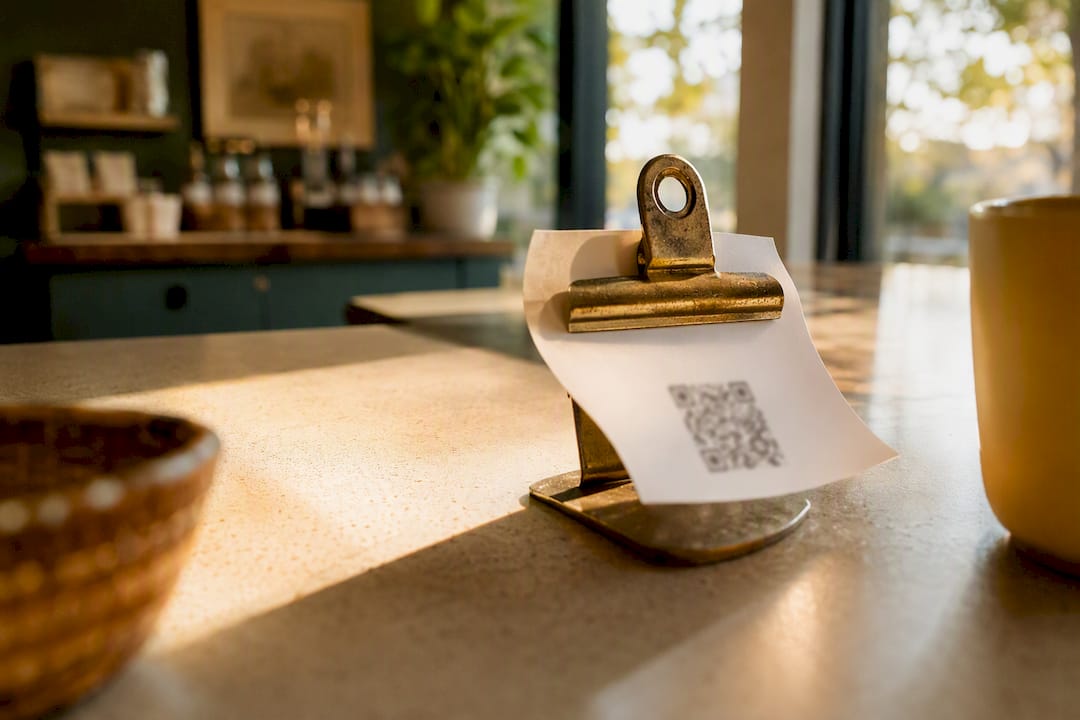
- Print it on receipts, table tents, checkout counters, or a small sign near the register. Label it clearly: "Enjoyed your visit? Scan to leave a quick review."
QR codes printed on receipts or table cards tend to convert well precisely because the customer doesn't have to remember your business name later or dig through their search history.
Pro Tip: Put the QR code where the customer is already looking, not off to the side. A code taped to a menu or clipped to a receipt gets scanned. One on a bulletin board across the room doesn't.
Where and When Should You Share the Review Link?
Match the channel to how the customer already interacts with your business, and time the ask to when satisfaction peaks.
- In person, use a QR code. Front desk, checkout counter, or a card handed over at the end of an appointment.
- For appointment-based services, send a text within the hour. A short SMS with the direct link right after a haircut, consult, or repair catches the customer while the experience is still fresh.
- For product purchases, email within 24 to 72 hours. Give the customer time to actually use what they bought before asking how it went.
- For general audience building, post the link on social media as an occasional, low-pressure ask rather than a constant drumbeat.
Here are three templates you can copy right now:
SMS: "Thanks for stopping by today! If you have a minute, we'd love an honest review here: [link]"
Email: "We hope you're enjoying your recent purchase. Sharing your honest experience helps other customers find us: [link]"
Printed receipt: "Enjoyed your visit? Tell us about it: [link]"
Pro Tip: Keep every template under two sentences. The longer the ask, the more it reads like a sales pitch instead of a favor.
What Google Actually Prohibits When Requesting Reviews
Google's Maps user contributions policy draws a hard line around how businesses can solicit feedback, and violating it risks having reviews removed or your profile restricted.
- No incentives of any kind, including discounts, gift cards, or entries into a giveaway in exchange for a review.
- No review gating, meaning you can't filter customers so only the happy ones get sent a review link while unhappy ones get routed elsewhere.
- No asking for a specific star rating or positive-only language ("Give us 5 stars!").
The safe phrasing is simple: ask for an honest review, full stop. Something like "We'd appreciate your honest feedback" clears the bar every time, while "Leave us 5 stars and get 10% off" violates Google's prohibited and restricted content policy on both counts at once. Violations aren't just a slap on the wrist. Google can remove the reviews outright or limit your ability to collect new ones for a stretch.
Fixing the Most Common Review Link Problems
Most review link complaints trace back to one of three issues, and each has a quick fix.
- Link opens search results instead of the review box. You likely copied the general listing URL instead of the specific "Write a review" link. Go back and regenerate it through "Get more reviews" or the Search/Maps method above.
- Customer says they can't post a review. Reviewers need to be signed into a Google account to submit feedback, a requirement confirmed in Google's own review help documentation. Most people have one through Gmail or an Android phone, but it's worth mentioning if someone gets stuck.
- "Get more reviews" button is missing entirely. Check that your profile is fully verified and that the account you're signed into actually has manager or owner access, not just viewer permissions on Google Business Profile.
If a review does slip through that violates the guidelines above, or a customer leaves something you believe is fake or abusive, that's a separate process worth understanding on its own.
Why Timing the Ask Matters More Than the Tool
The workflow that consistently outperforms a single generic request is layered: a manual ask at the moment satisfaction peaks, followed by an automated nudge for the customers who meant to leave a review and forgot.
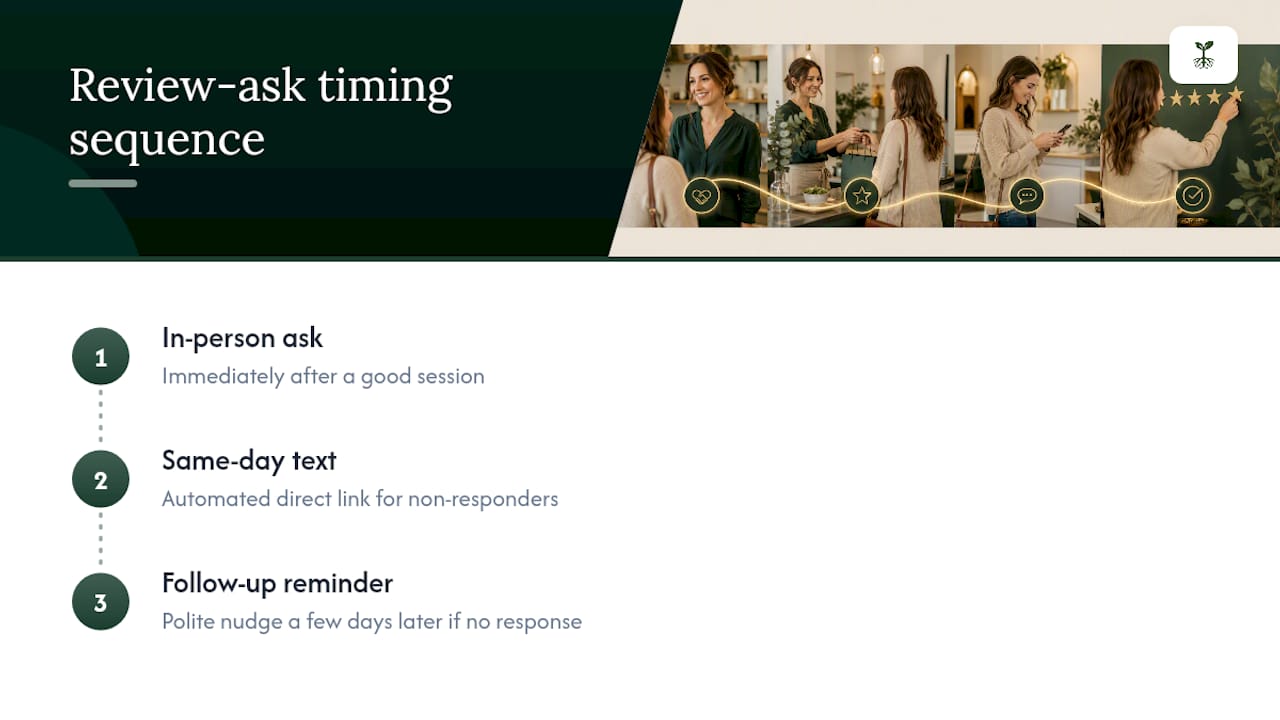
The sequence looks like this: the owner or front desk asks in person right after a good session, a same-day automated text goes out with the direct link for anyone who didn't act on the spot, and one polite reminder follows a few days later if there's still no response.
This works because it respects both the customer's time and Google's rules. Nothing is incentivized, nothing pressures a specific rating, and the automation only ever repeats the same neutral, honest-feedback ask.
— Jason
Let Rooted Up Handle Your Review Requests for You
Building the link is the easy part. Keeping it in front of the right customers, at the right moment, without breaking Google's rules, is the part that eats into your week. Rooted Up runs that whole loop for solo professionals: Google Business Profile management, review request automation triggered at the moment a job wraps up, compliant message templates already written for your industry, and monthly reporting so you can see what's converting.
Instead of remembering to copy a link, test it, and chase down customers who forgot, you get a system that does the asking on schedule and flags anything that needs your attention. If you're already tracking clicks on a shortened link and still seeing gaps between visits and reviews, that's usually a timing problem, not a link problem, and it's the first thing Rooted Up fixes for new clients. Check out Rooted Up's services to see how review automation fits into a monthly plan built for solo professionals.
Sources
Official references: Create a Google link or QR code, Get a link to a customer's review, Maps contributions policy, and compliant review request templates.
- Get a link to a customer's review - Google Business Profile Help