
Google Business Profile posts are short, free updates that appear directly on your Business Profile in Search and Maps. Publish Google Business Profile posts regularly, maintaining a consistent posting schedule, and you give Google a consistent freshness signal while giving searchers a reason to click, call, or walk in.
A single post can include:
- A text description (up to 1,500 characters, though the first 100 words carry the most weight)
- A photo or short video
- A call-to-action button (Book, Call, Order online, Learn more, Buy, Sign up, Get offer)
- Dates (required for Events and Offers; optional for Updates)
Pro Tip: Avoid embedding phone numbers inside post text to comply with Google's content policy and prevent rejection. Use the verified Call button on your profile instead.
Key Takeaways
Consistent, policy-compliant Google Business Profile posts, published at least weekly with a clear CTA and UTM-tagged links, are the most direct way to turn your Business Profile from a static listing into an active lead source.
| Point | Details |
|---|---|
| Post at least weekly | The GBP Best Practices Playbook recommends weekly posting with a mix of Updates, Offers, and Events. |
| Lead with the action | Put the offer or benefit in the first 100 characters; mobile users see nothing else before truncation. |
| Follow the phone-number rule | Never put your phone number in post text; use the profile's verified Call button to avoid rejection. |
| Track with UTM links | Append utm_source=google&utm_medium=gbp_post to every CTA URL to see post-driven traffic in Analytics. |
| Rooted Up manages it for you | Rooted Up's monthly plans include post creation, scheduling, UTM tagging, and monthly reporting. |
Table of Contents
- What are Google Business Profile posts, and which type should you use?
- Where do customers actually see your posts?
- How to create and publish a Google Business Profile post
- Understanding post status and Google's content policies
- How to write GBP posts that actually get clicks
- Ready-to-use post templates for Update, Offer, and Event posts
- How to schedule, edit, delete, and manage post lifespan
- How to measure post performance with simple KPIs and UTM tracking
- Common post problems and how to fix them
- Why consistent GBP posts matter more than most businesses realize
- Rooted Up handles your GBP posts so you can focus on your clients
- Sources
What are Google Business Profile posts, and which type should you use?
Google Business Profile posts are not social media posts. They live inside your Business Profile on Google Search and Maps, and they are built for one purpose: converting a high-intent local searcher into a customer action. Unlike a Facebook post that competes in a feed, a GBP post appears when someone is already searching for what you offer.
Google documents three post types: Update, Offer, and Event.
Update posts
Updates are the workhorse. Use them for anything that does not fit a sale or a scheduled event: a new service, a staff highlight, a seasonal tip, a before-and-after photo, or a simple "we're open this weekend" reminder. No end date required.
Offer posts
Offers are for time-limited promotions. They require a start and end date, and you can add a coupon code, terms and conditions, and a redemption link. One important restriction: hotels cannot publish Offer posts per Google's content policy, because mixing organic deal listings with ad-based pricing creates user confusion.
Event posts
Events need a title, a start date, and an end date. If you skip the start or end time, Google defaults the event to run for 24 hours on the listed dates, so include precise times for anything time-sensitive. If you also have an event page on your website, mirroring those details with Schema structured data can reinforce the signal across platforms.
A quick decision rule: new product or service announcement = Update; limited-time discount = Offer; workshop, open house, or community event = Event.
Where do customers actually see your posts?
Placement depends on the device and how Google surfaces your profile. Here is where posts appear:
- Mobile Search (Updates/Overview tab): Posts show under the "Updates" tab on your Business Profile card. On mobile, this is the most prominent placement, and the first image and opening line are visible before any tap.
- Desktop Search (From the owner section): On desktop, posts appear in the "From the owner" section when a user expands your Knowledge Panel. Visibility is lower than mobile, but the CTA button is still clickable.
- Google Maps: Posts can surface in Maps when a user taps your profile, under the Updates tab.
- Featured posts: Google may auto-surface a recent post as a featured snippet within your profile, particularly for social or cross-posted content. You cannot manually force this, but a strong image and clear opening line improve the odds.
The practical implication: design every post for mobile first. The image crops to a roughly square format on mobile, and only the first sentence or two of text is visible before the "Read more" truncation. Put your most important information in the first 100 characters of the description, not buried at the end.
Google's official guidance confirms that posts can appear in both the Overview and Updates tabs and in the "From the owner" section on desktop.
How to create and publish a Google Business Profile post
The fastest path: open Google Search, search for your business name while signed into your Google account, and click "Add update" directly on your profile card. That takes you straight to the post editor without navigating any dashboard.
The full workflow via Business Profile Manager:
- Go to business.google.com and select your location.
- Click Posts in the left navigation.
- Click Add post (or the "+" icon).
- Choose your post type: Update, Offer, or Event.
- Upload a photo or video. Use images that meet Google's recommended minimum size to ensure clarity across devices. JPG or PNG formats work best.
- Write your description. Lead with the action or benefit in the first sentence.
- For Offers: add a title, start/end dates, optional coupon code, and terms.
- For Events: add a title, start date/time, and end date/time.
- Add a CTA button. Choose the button type that matches your goal (Book, Call, Order online, etc.) and paste your destination URL with UTM parameters appended.
- Preview the post on the right side of the editor, then click Publish.
For businesses managing multiple locations, you can publish to several profiles simultaneously through the Business Profile Manager dashboard by selecting multiple locations before creating the post.
Pro Tip: Draft your post copy in a plain text editor first, paste it in, and read the preview on mobile view before hitting Publish. The truncation point at roughly 100 characters is easy to miss when you're writing in the full editor.
Scheduling and recurring posts are available directly in the Business Profile UI. When creating a post, look for the scheduling option to set a future publish date, or set a recurrence for Updates you want to repeat on a weekly or monthly basis.
Understanding post status and Google's content policies
Every post goes through a review before it goes live. The three states are straightforward: Live means the post passed review and is visible; Pending means it is under review (usually resolves within a few hours, occasionally up to 24); Not approved means it violated a policy and will not publish until you edit and resubmit.
The policies that cause the most rejections, per Google's posts content policy:
- Phone numbers in post text. Strictly prohibited. Use the profile's Call button.
- Prohibited content categories. Adult content, dangerous products, deceptive claims, and content that violates Google's general policies will not pass review.
- Restricted content. Alcohol, gambling, healthcare, and financial services posts face additional scrutiny and may require compliance with local regulations.
- Hotel Offer restriction. Hotels cannot publish Offer posts at all.
- Family-friendly requirement. All images and copy must be appropriate for a general audience.
Policy reminder: Auto-generated, keyword-stuffed, or low-value copy is one of the fastest ways to trigger automated rejection. Google's systems flag copy that reads like it was generated without human intent. Write for the customer, not for the algorithm, and your approval rate will stay high.
If a post comes back as Not approved, click into it, read the rejection reason if one is shown, edit the offending element, and resubmit. For repeated rejections without a clear reason, the GBP policy overview explains the escalation path and how to request a review. Profiles with repeated violations can have posting restricted entirely, so fix issues promptly rather than resubmitting the same content.
How to write GBP posts that actually get clicks
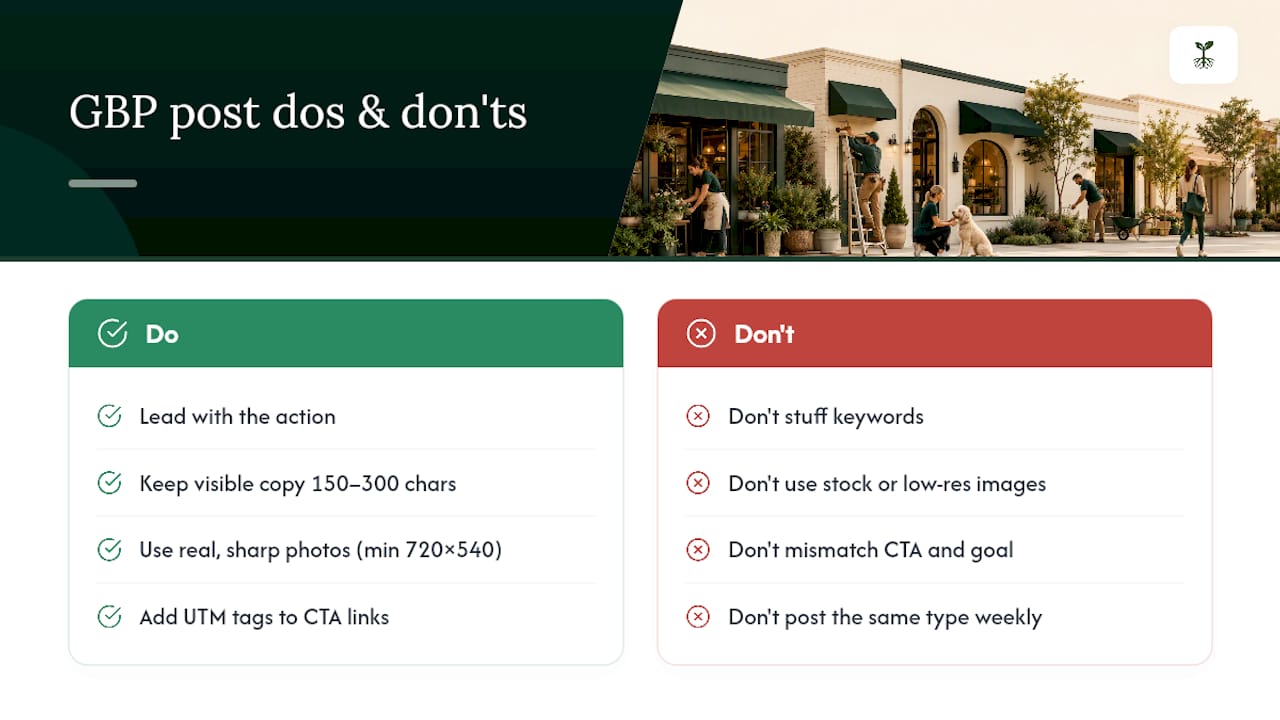
Lead with the action. The first sentence of your post is what most mobile users see before they decide to tap "Read more" or scroll past. State the offer, the event, or the benefit in plain language before anything else.
Copy length and keywords. Descriptions allow up to 1,500 characters, but posts that perform well tend to use 150–300 characters for the visible portion. Include one or two natural local keywords (your service + city) in the first sentence, but do not stuff them. A post that reads "Best plumber in Austin, TX, Austin plumbing services, Austin pipe repair" will get rejected or ignored. "Austin homeowners: we're offering same-day pipe repair this week" works.
Images. Use a real photo of your work, your space, or your team rather than a stock image. Google Cloud Vision and similar image-quality tools can flag low-resolution or policy-violating images before you upload, which saves a rejection cycle. Minimum 720 x 540 pixels; square crops (1:1) tend to display cleanly across both mobile and desktop. Video is supported and tends to hold attention longer, but a sharp, well-lit photo beats a shaky video every time.
CTA selection. Match the button to the conversion goal. "Book" for appointments, "Get offer" for promotions, "Learn more" for informational updates. A mismatched CTA (e.g., "Learn more" on a time-sensitive sale) bleeds clicks.
Frequency. The GBP Best Practices Playbook recommends posting at least weekly and rotating through Updates, Events, and Offers to signal consistent activity. One post type repeated every week starts to look stale; variety signals a genuinely active business.
UTM tagging. Append UTM parameters to every CTA link so you can see post-driven traffic in Google Analytics. A standard convention that works well for small businesses: utm_source=google&utm_medium=gbp_post&utm_campaign=post_title. More on measurement in the next section.
Practitioners consistently report higher engagement when the first 1–2 lines clearly state the offer or action and the image directly matches the promoted item, per the GBP Community best-practices thread.
Ready-to-use post templates for Update, Offer, and Event posts
These templates are designed to be copied, filled in, and published. Each one is built around the "lead with the action" principle.
Update post template
[City] [profession/business type]: [one-sentence description of what's new or useful]. [One sentence expanding the benefit or adding a detail.] [CTA: Book a free consult / See our latest work / Learn more] URL: yourdomain.com/page?utm_source=google&utm_medium=gbp_post&utm_campaign=update_[month]
Example: "Austin physical therapists: we now offer same-day appointments for sports injuries. No referral needed, and most major insurance plans are accepted. Book your slot today."
Offer post template
[Discount or deal headline] — [dates]. [One sentence on what's included and who it's for.] Coupon code: [CODE] | [CTA: Get offer] URL: yourdomain.com/offer?utm_source=google&utm_medium=gbp_post&utm_campaign=offer_[month]
New clients in the Denver metro area. Use code CLEAN20 at checkout."
Event post template
[Event name] — [Date], [Start time]–[End time]. [One sentence on what attendees will get or experience.] [CTA: Register now / Learn more / Sign up] URL: yourdomain.com/event?utm_source=google&utm_medium=gbp_post&utm_campaign=event_[month]
Example: "Free tax prep workshop — March 8, 10:00 AM–12:00 PM. Join us at our Portland office for a hands-on session covering deductions for self-employed professionals. Reserve your seat."
Pre-publish checklist
Before you hit Publish on any post, run through this list:
- Image is at least 720 x 540 pixels and directly relevant to the post content
- First sentence states the offer, benefit, or action clearly
- No phone number in the post text
- CTA button type matches the conversion goal
- UTM parameters are appended to the destination URL
- Dates are correct (for Offers and Events)
- Copy reads naturally, not like a keyword list
For events, also check that your website event page uses EventHound's business posting guidelines or equivalent structured data to reinforce the event details across platforms.
How to schedule, edit, delete, and manage post lifespan
You can schedule posts in advance and set them to recur, which makes weekly posting much easier to maintain. Here is the workflow:
- Start creating a post as normal in Business Profile Manager.
- Before clicking Publish, look for the Schedule option at the bottom of the editor.
- Set the date and time you want the post to go live.
- For recurring posts, select the recurrence frequency (weekly, biweekly, monthly) and set an end date if needed.
- Click Schedule to confirm. The post will appear in your Posts list with a "Scheduled" status.
To edit a published post, go to Posts in Business Profile Manager, find the post, click the three-dot menu, and select Edit. Changes go back through the review process, so expect a short Pending window.
To delete a post, use the same three-dot menu and select Delete. Deletion is immediate and permanent.
On post lifespan: Update posts do not have a hard expiration date, but practitioner experience suggests visibility tends to fade after roughly six months as newer posts push older ones down. Offer and Event posts expire automatically on their end date. The practical rule: treat any post older than four to six weeks as a candidate for refresh or replacement, and never leave an expired Offer or Event post as your most recent content. A stale post signals an inactive profile more than no post at all.
For time-sensitive content, delete the post once the offer or event has passed rather than leaving it visible with an expired date.
How to measure post performance with simple KPIs and UTM tracking
Track views, clicks, actions (calls and bookings), and downstream conversions. GBP Insights gives you the first three; UTM-tagged CTA links connect post activity to real site behavior in Google Analytics.
| KPI | Where to find it | Suggested monthly target (SMB) |
|---|---|---|
| Post views | GBP Insights → Posts | Baseline in month 1; aim for 10% growth month over month |
| Post clicks (CTA) | GBP Insights → Posts | 2–5% click-through rate on views |
| Actions taken (calls, bookings) | GBP Insights → Calls / Bookings | Track trend; any increase after posting cadence change is a signal |
| Website sessions from posts | Google Analytics → Source/Medium: google / gbp_post | At least 1 attributed session per post per week |
UTM example. Say you publish an Offer post for a March promotion. Your CTA URL would look like this:
https://yourdomain.com/march-offer?utm_source=google&utm_medium=gbp_post&utm_campaign=march_offer_2026
In Google Analytics 4, go to Reports → Acquisition → Traffic Acquisition, filter by Source/Medium = "google / gbp_post," and you will see every session that came through that post's CTA. This is the only way to connect a GBP post to a form fill, a purchase, or a phone call tracked via your website.
The GBP Community best-practices thread confirms that this UTM convention is the standard approach practitioners use to attribute post-driven traffic without complex setup. Pair it with your AI-driven reporting workflows to turn monthly Insights exports into decisions rather than spreadsheets.
Posts are not a direct ranking factor in isolation. The GBP Best Practices Playbook is clear that regular posting signals activity and legitimacy to both users and Google, but it works alongside accurate profile data and reviews, not instead of them. Think of posts as the engagement layer on top of a well-maintained profile. For more on how consistent content supports your online reputation management, the connection between posting cadence and review velocity is worth understanding.
Common post problems and how to fix them
Post rejected (Not approved)
- Re-read the rejection reason in Business Profile Manager.
- Remove any phone number from the post text.
- Check for prohibited content categories (adult, dangerous, deceptive).
- Rewrite any copy that reads as keyword-stuffed or auto-generated.
- Resubmit. If rejected again without a clear reason, consult the GBP policy overview for the appeal process.
Post stuck in Pending
- Wait up to 24 hours. Most posts clear within a few hours.
- Verify your profile is fully verified and in good standing.
- If Pending persists beyond 24 hours, try deleting and re-uploading the post with a fresh image file.
Low visibility or no clicks
- Rewrite the first sentence to lead with a clear benefit or offer.
- Replace stock images with original photos.
- Add or fix UTM parameters so you can confirm whether clicks are actually happening.
- Increase posting frequency to at least once per week.
- Check that your CTA button type matches the conversion goal.
Profile posting restricted or suspended
- Review the GBP policy overview for the specific violation category.
- Prepare documentation: business license, address verification, and a record of recent posts.
- Submit a reinstatement request through the Business Profile Help Center.
- Do not create a duplicate profile while a suspension is under review.
Why consistent GBP posts matter more than most businesses realize
Most small businesses treat their Google Business Profile like a set-it-and-forget-it directory listing. They fill in the hours, upload a few photos, and move on. That approach worked in 2018. It does not work now.

The businesses showing up consistently in the local pack are not just the ones with the most reviews or the longest tenure. They are the ones signaling ongoing activity: fresh posts, updated photos, answered questions. Google's own playbook frames regular posting as a legitimacy signal, not just a visibility tactic. A profile that posts weekly looks like an operating business. One that last posted six months ago looks like it might be closed.
Here is the part most guides skip: GBP posts are not a ranking lever you pull once. They are a rhythm. A single great post does not move the needle. Fifty consistent posts over a year, each with a clear CTA and a relevant image, build a pattern that both Google and your potential customers notice. The businesses I see getting the most out of their profiles are not writing elaborate posts. They are writing short, specific ones, every week, without fail.
The other underrated benefit is the feedback loop. When you tag every CTA with UTM parameters and check your Analytics monthly, you start to see which post types drive actual site visits and which ones get views but no clicks. That data tells you more about your customers' intent than any survey. A solo professional who commits to a 90-day weekly posting rhythm and tracks the results will have more useful local marketing data than most businesses collect in a year.
Rooted Up's clients who use managed GBP posting as part of their monthly plan consistently report that the discipline of weekly posting, combined with monthly Insights reviews, is what finally makes their profile feel like a real marketing channel rather than a static listing.
Rooted Up handles your GBP posts so you can focus on your clients
Solo professionals and small business owners who know they should be posting weekly but never quite get to it have a straightforward option: hand it off entirely. Rooted Up's monthly marketing plans include done-for-you Google Business Profile management, which means your profile stays active without you writing a single post.
The GBP management service covers post creation (Updates, Offers, and Events), scheduling, UTM tagging on every CTA link, and a monthly performance report showing views, clicks, and attributed site sessions. You get a profile that looks like an active, engaged business every week, backed by the same measurement discipline described in this guide.
If you are not sure where your profile stands right now, Rooted Up's services page includes a free profile audit as the starting point. No long-term contract required for the first month. See what a managed posting cadence actually does for your local visibility before committing to anything.
Sources
These are the primary official sources referenced throughout this guide:
- Create & manage posts on your Business Profile - Google Business Profile Help