Upload JPG or PNG files meeting Google's recommended size and format requirements, starting with your logo, cover photo, storefront exterior, interior, and one product or team shot. Those five categories move the most clicks and calls. Verify your profile if you haven't, then upload that core set today. Everything else, including cadence and cropping, is refinement.
TL;DR:
- Upload at least three photos per category, including exterior, interior, and product images, to maximize engagement and trust.
- Maintain a consistent cadence by adding two to four new photos monthly, signaling active management and relevance.
- Ensure all photos meet Google's size and format requirements, with a recommended resolution of 720×720 pixels and a 4:3 cropping ratio.
- Use natural daylight for photos, avoid heavy filters, and crop images to the platform-specific ratio to prevent awkward cuts.
- Verify photos are live within 24 to 48 hours and flag any misrepresentative or inappropriate customer photos for review.
Table of Contents
- Google Business Profile Photo Requirements You Can't Skip
- Which Photo Types Actually Move Engagement?
- How Do You Upload, Change, or Remove Business Profile Photos?
- What Photo Habits Actually Improve Trust and Clicks?
- Why Do Google Business Profile Photos Get Rejected?
- Rooted Up's Photo Audit Checklist for Busy Owners
- Why Consistency Beats Effort Here
- Let Rooted Up Handle the Photo Cadence for You
- Where These Photo Rules Come From
- Sources
Google Business Profile Photo Requirements You Can't Skip
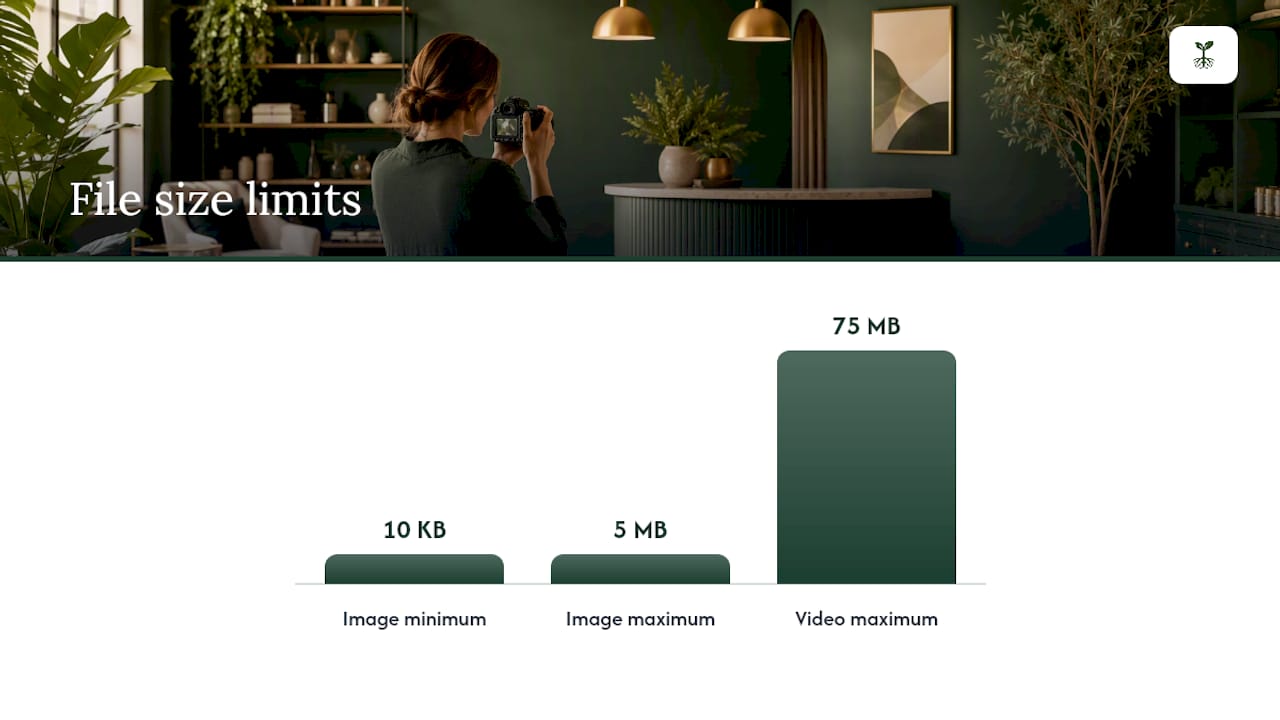
Google's rules for Business Profile photos and videos are stricter on format than most owners assume. Files must be JPG or PNG, sized between 10 KB and 5 MB, with a recommended resolution of 720×720 pixels and a hard minimum of 250×250 pixels. Anything smaller gets rejected outright; anything blurrier than that minimum just looks bad next to competitors who bothered to use a decent camera.
Videos follow a separate, tighter set of rules: 30 seconds maximum, under 75 MB, and shot at 720p or higher. That's a narrow window, so a single well composed walkthrough clip beats three shaky ones.
Cover photos and product shots benefit from going bigger than the minimum. Aim for higher resolution images appropriate for cover or product photos while staying under the 5 MB ceiling. A cover photo that's too small stretches and pixelates across the wide banner format Google uses on desktop and mobile.
The practical fix nobody mentions in Google's own documentation: shoot or crop to a 4:3 ratio. Google's cropping algorithm tends to chop the top and sides off images that don't fit its display panels cleanly, and practitioner guidance backs 4:3 as the safest ratio for avoiding awkward cuts. When a shot matters, upload both a landscape and a vertical version. Google surfaces different aspect ratios depending on whether a customer is scrolling the Maps list view or browsing your profile gallery, so having both versions on hand covers more ground.
| Spec | Requirement |
|---|---|
| File format | JPG or PNG |
| File size | 10 KB to 5 MB |
| Recommended resolution | 720×720 px |
| Minimum resolution | 250×250 px |
| Cover/product resolution | 720×720 px or 250×250 px minimum |
| Video length | 30 seconds max |
| Video file size | Under 75 MB |
| Video resolution | 720p or higher |
Which Photo Types Actually Move Engagement?
Google groups photos into categories for a reason: each one answers a different question a customer is asking before they call or walk in. Google's own guidance on business-specific photos recommends at least three strong images in most categories, not just one token upload per type.
Here's how the categories break down and what each one is actually doing for you:
- Logo — builds brand recognition across Search and Maps; upload it once, keep it current.
- Cover photo — the first image a searcher sees; treat it like a storefront window.
- Exterior — helps people physically find you and confirms they're at the right address.
- Interior — sets expectations for atmosphere before someone walks in, which matters most for restaurants, salons, and clinics.
- Product or service — drives purchase intent; a plate of food or a finished haircut sells harder than any description.
- Team or at-work — humanizes the business, especially for service providers where trust matters more than price.
- Customer photos — you don't control these, but they factor into what Google displays.
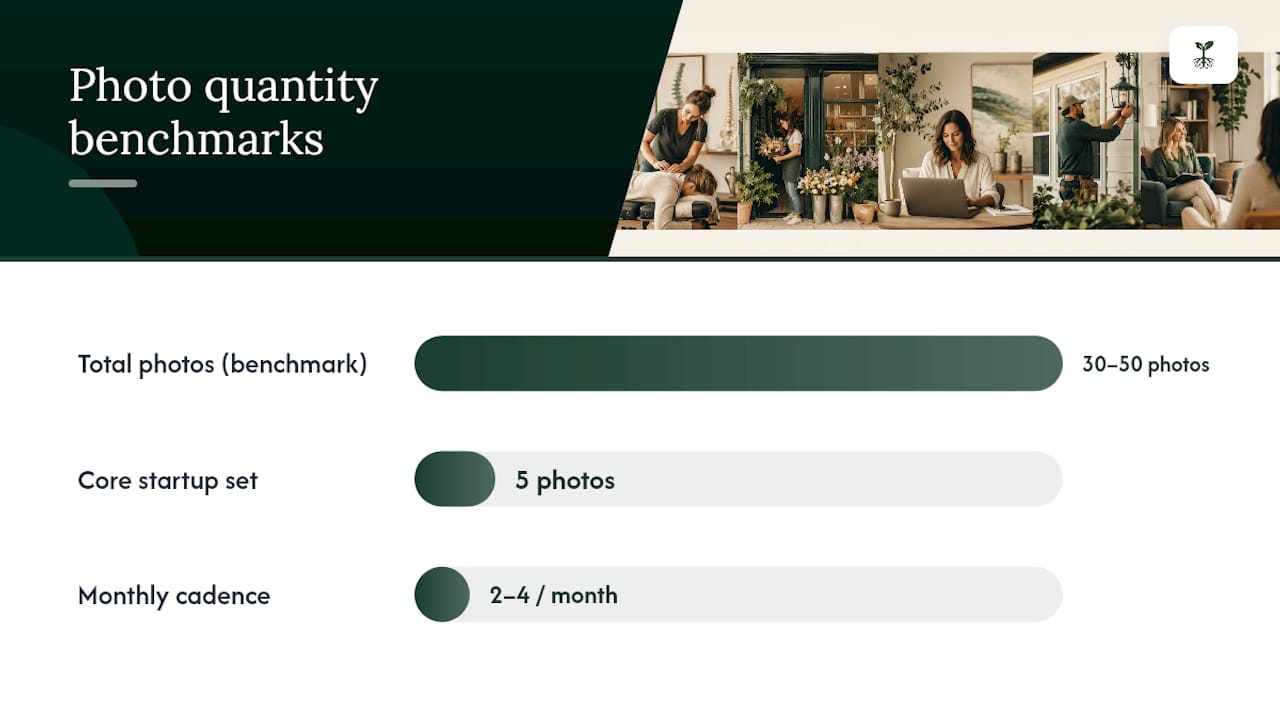
Realistic benchmarks vary by business type, but industry audits point to 30 to 50 total photos as the range where many local businesses start seeing stronger engagement. A coffee shop might lean heavy on product and interior; a plumber leans on at-work and team shots since there's no storefront to photograph.
If you're starting from zero and short on time, prioritize in this order: logo, cover, exterior, interior, then product or team. That five-image core covers the categories customers check first.
Cadence matters almost as much as the initial upload. A steady rhythm of two to four new photos a month signals active management better than one bulk upload followed by silence, since recency and engagement tend to move together.
How Do You Upload, Change, or Remove Business Profile Photos?
Your profile needs to be verified before any photo goes fully live, so confirm that status first if you haven't touched your profile in a while.
- Fastest path (mobile): search your business name in Google Maps or Search, tap your profile, hit the camera icon, and upload directly. This is the quickest route for most solo professionals.
- Desktop path: go to business.google.com, select your profile, click "Photos," and choose the category before uploading.
- Bulk uploads for multiple locations: Business supports batch uploads through its dashboard, which saves real time if you're managing more than one profile.
- Setting your cover photo or logo: open the Photos tab, select the image, and mark it as cover or logo. Google sometimes overrides your choice with a customer photo it judges more relevant, so this setting is a strong preference, not a lock.
- Reviewing customer-submitted photos: check the "Customers" tab under Photos periodically. You can flag anything inappropriate, but you cannot simply delete a customer photo you dislike for other reasons.
- Confirming a photo is live: uploaded media typically takes 24 to 48 hours to appear. Status will show as pending, live, or not approved, and checking back after two days is usually enough to catch a rejection early.
What Photo Habits Actually Improve Trust and Clicks?
Skip the studio. Google's own guidance and most practitioner advice agree that authentic phone photos shot in daylight outperform heavily staged or filtered ones for building trust with searchers who are trying to figure out if a business is real and current.
A few habits make a measurable difference without costing anything:
Shoot in natural light, and shoot several versions. Take five or six shots of the same subject at different angles rather than settling for the first frame. Wipe your lens first. Skip heavy filters and skip retouching that makes a space look nothing like what a customer will actually walk into.
Crop for the platform, not for Instagram. Stick to a 4:3 ratio and keep the subject centered so Google's automated cropping doesn't slice off a sign or a face when it resizes for different panels.
Name your files like a person, not a keyword list. "front entrance oak street.jpg" reads fine to Google and to any human who downloads it. "best plumber near me cheap plumbing services.jpg" looks like exactly what it is, and it doesn't move rankings the way some SEO advice implies.
Refresh your cover photo occasionally. Google sometimes swaps in a customer photo as the primary image if it judges that photo more engaging. Uploading fresh, high-resolution owner photos regularly and encouraging staff or repeat customers to view and engage with them improves the odds your own image stays in the top spot.
Pro Tip: Keep a running folder of "already cropped to 4:3" photos on your phone. When you're standing in your shop with two free minutes, you upload instantly instead of fumbling with cropping tools on a slow connection.
Why Do Google Business Profile Photos Get Rejected?
Most rejections trace back to a handful of predictable mistakes, and Google's photos and videos policy spells out what triggers them.
- Text overlays or promotional banners on the image itself, which read as spam to the review system.
- Low resolution or heavy compression that falls under the 250×250 px minimum or looks noticeably blurry.
- Privacy issues, like a photo that clearly shows identifiable people who haven't consented to appear.
- Content that violates the policy outright, including anything obscene, misleading, or unrelated to the business.
Review usually takes 24 to 48 hours. "Pending" just means it's still in that window; "not approved" means it failed review and won't reappear, so don't keep resubmitting the same file expecting a different outcome.
If a customer uploads a photo that misrepresents your business, flag it through the Customers tab under Photos. Google reviews flagged content but doesn't guarantee removal, particularly if the photo doesn't clearly violate policy.
One compliance point worth taking seriously: if a photo includes an identifiable customer or employee, get a quick verbal or written release before posting it publicly. It's a small step that avoids a bigger headache later.
Rooted Up's Photo Audit Checklist for Busy Owners
Run through this list before you call your profile "done." It's the same sequence Rooted Up uses when auditing a new client's Business Profile.
- Logo uploaded and current
- Cover photo set, sized correctly, and not overridden by a random customer shot
- At least three exterior photos showing signage and entrance clearly
- Interior photos covering the space customers will actually walk into
- Team or at-work photos that put a face on the business
- Product or service photos updated within the last few months
- One short video under 30 seconds and under 75 MB
- Total photo count tracked toward the 30 to 50 range
- New photos added in the last 30 days
Clients working with Rooted Up on ongoing Google Business Profile management typically see this checklist maintained monthly rather than revisited once a year, which is where most DIY efforts quietly stall. A managed plan earns its cost once you're missing uploads for more than a month or two at a stretch.
Why Consistency Beats Effort Here
Doing this well by hand takes maybe 30 to 45 minutes a month if you're organized: a quick shoot, some cropping, a few uploads. Most owners don't actually lack the skill. They lack the month when nothing else is on fire.
Outsourcing pays off less because you can't take good photos and more because nobody's tracking whether last quarter's photos ever went up. Consistency, not talent, is the thing solo professionals underestimate about their own Business Profile.
— Jason
Let Rooted Up Handle the Photo Cadence for You
Consistent photo uploads following the cadence this article described mean less "I'll get to it" and more photos actually going live on schedule for solo professionals.

A monthly plan through Rooted Up typically covers scheduled photo uploads, light editing and cropping to spec, review monitoring, and flagging customer photos that misrepresent your business, folded into the same monthly marketing and AI operations service that handles your reviews and local SEO. Clients get a profile that looks actively managed year round instead of updated once and forgotten, and photo work stays connected to the review and engagement tracking Rooted Up already runs. If your Business Profile hasn't had a new photo in months, check Rooted Up's service packages and get a plan built around your actual upload gaps.
Where These Photo Rules Come From
The specs and category guidance here come directly from Google's own photo and video management documentation and its content policy for photos and posts. Benchmark counts and cadence recommendations draw from Storefront Audit's practitioner guide and SEMrush's sizing and cropping advice. For broader visual consistency between your profile and your website, this local business checklist is worth a read.
Sources
- Manage your Business Profile photos & videos - Computer - Google Business Profile Help
- Google Business Profile Photos: 2026 Guide to More Calls | Storefront Audit
- Google Business Profile Photo Size Guidelines (+ Image Tips) — SEMrush