
Use AI to draft, iterate, and polish your emails — but always review before you hit send. For a first draft right now, open ChatGPT, paste three bullet points (who you're writing to, what you want them to do, and the tone you want), and ask for a two-paragraph email. Done in under a minute.
Quick tools to try today:
- ChatGPT — flexible, works for any email type, free tier available
- Microsoft Copilot — built into Outlook, context-aware for thread replies
- Quillbot — fast rephrasing and tone adjustments, browser extension available
- Mailmeteor — free demo for mail-merge and mass personalization in Gmail
Your 60-second start:
- Pick one tool above
- Paste three bullets: recipient role, your goal, desired tone
- Ask for a draft
- Run the pre-send checklist in Section 8 before you send
Immediate do's and don'ts:
- Do use AI for structure, subject lines, and first drafts
- Do iterate: ask for shorter, more confident, or less formal versions
- Never auto-send without reading the output yourself
- Never paste confidential client data, legal details, or financial figures unless the vendor explicitly permits it in their privacy policy
Key Takeaways
AI email drafting works best as a drafting and editing tool with human review at every send — that single habit separates effective use from risky use.
| Point | Details |
|---|---|
| Always review before sending | Auto-sending AI drafts is high-risk; human sign-off is the non-negotiable step. |
| Prompt quality drives draft quality | Use the role + goal + recipient + tone + constraints structure for near-sendable first drafts. |
| 24% daily AI email adoption | Generic AI phrasing floods inboxes; one specific personal detail per email defeats it. |
| Check permissions before connecting | Prefer read-only or no-inbox-access tools; verify data retention and training opt-out policies. |
| Rooted Up managed workflows | Monthly subscription handles drafting, review, privacy vetting, and KPI tracking for solo professionals. |
Table of Contents
- How does AI email drafting actually work?
- Where AI drafting saves professionals the most time
- How to prompt AI for better email drafts
- Which AI email tools are worth trying?
- What to check before connecting a tool to your inbox
- When AI fails and why human review is non-negotiable
- Pre-send checklist: 60 seconds before you hit send
- How Rooted Up uses AI to draft client emails
- A managed AI email workflow built for solo professionals
- What's the right way to think about AI for email writing?
- Sources
How does AI email drafting actually work?
AI email tools generate text by predicting the most likely next word given your prompt and any context you supply. They are not reading your relationship history with a contact or understanding the stakes of your deal. They are pattern-matching against enormous training datasets to produce plausible, coherent text. That distinction matters for how you use them.
The typical pipeline looks like this: you write a prompt, the model generates a draft, you refine it with follow-up instructions, and a human reviews and sends. Microsoft Copilot describes this as a collaborative drafting process, not an autonomous sending robot. Copilot can draft, rewrite, summarize threads, and suggest replies, but the expectation is that you iterate and approve.
Most tools offer some combination of these features: tone control (formal, casual, assertive), length control, subject-line suggestions, thread summarization, and reply suggestions. Inbox-integrated options like Copilot pull context from the thread itself. Standalone tools like ChatGPT rely entirely on what you paste in.
Three limitations to set expectations now. First, hallucinations: AI can invent facts, dates, or names that sound plausible but are wrong. Second, generic phrasing: about 24% of employees now use AI daily to write emails, which means the same tired phrases are flooding inboxes. Third, context blindness: a model given only your prompt has no idea about the three prior emails in the thread, the client's mood, or the deal stage. Human review fixes all three.
Where AI drafting saves professionals the most time
Not every email benefits equally from AI help. The highest-value use cases are the ones that are structurally repetitive but need light personalization each time.

Sales and outreach get the clearest win. Cold outreach emails follow a predictable structure (hook, credibility, ask), and AI handles that scaffold well. Follow-up cadences, where you need five variations of "checking in" without sounding like a robot, are a natural fit for batch drafting with personalization tokens.
HR and operations teams use AI for interview scheduling confirmations, onboarding checklists sent as emails, and short status updates. These messages need to be clear and consistent, not creative. AI delivers that.
Marketing gets value from subject-line A/B ideation and tone variants for segmented lists. If you're sending the same campaign to a cold list and a warm list, AI can rewrite the same core message at two different warmth levels in about 30 seconds.
One distinction worth making: batch drafting with personalization tokens (first name, company, recent trigger event) works well for volume outreach. For a single high-stakes message to a key client or executive, you want a one-off draft with specific context baked in from the start, not a template with tokens swapped. The AI customer journey framework Rooted Up uses maps these scenarios to the right tool and workflow for each stage.
How to prompt AI for better email drafts
The single biggest factor in draft quality is prompt quality. A vague prompt gets a vague email. A structured prompt gets something close to sendable.
The directive pattern: Role + goal + recipient + tone + constraints.
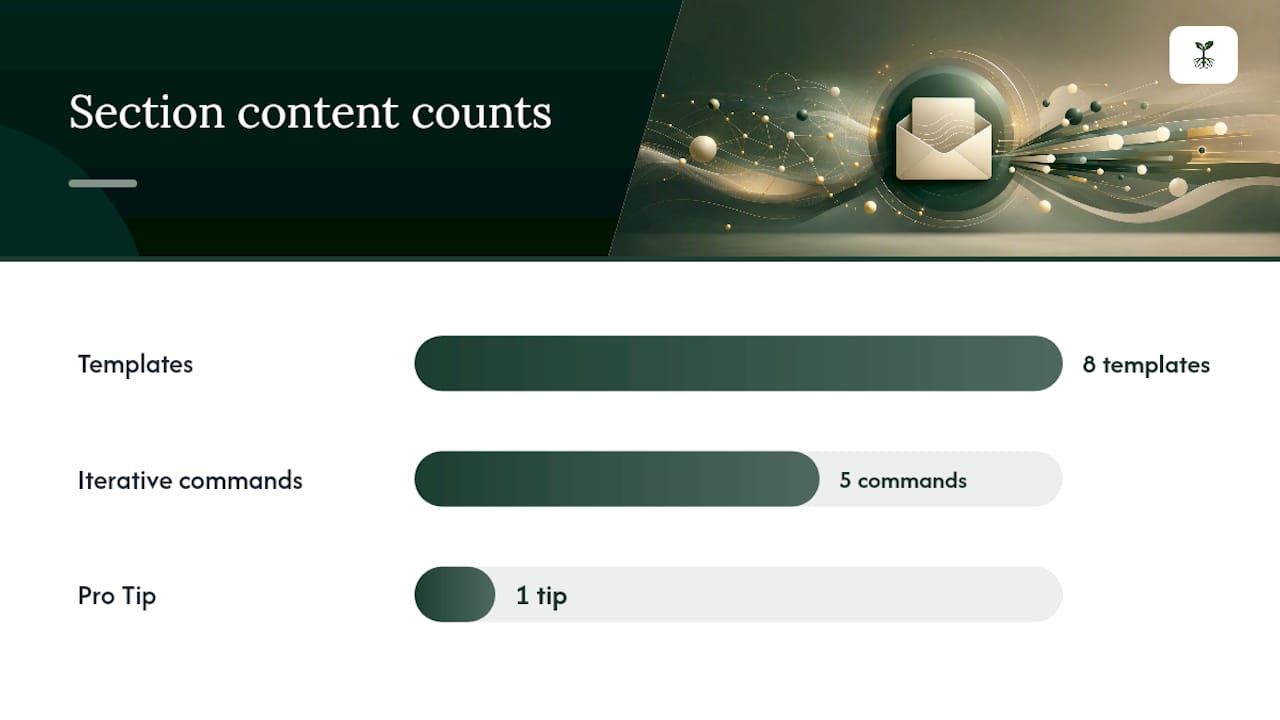
That structure gives the model everything it needs. Here are eight ready-to-use templates:
- Cold outreach: "Draft a three-sentence cold email to a [job title] at a [industry] company. Goal: book a 20-minute call. Tone: confident, not pushy. No buzzwords."
- Follow-up after no reply: "Write a short follow-up to someone who didn't respond to my last email about [topic]. Assume they're busy, not uninterested. Keep it under 80 words."
- Meeting request: "Draft a meeting request to [recipient role] asking for 30 minutes to discuss [topic]. Suggest two time slots. Professional tone."
- Reply with schedule options: "Write a reply offering three scheduling options for a call next week. Keep it brief and easy to respond to."
- Brief status update: "Write a two-sentence project status update for a client. Current status: [X]. Next milestone: [Y]. Tone: calm and confident."
- Subject-line generator: "Generate five subject lines for an email about [topic] to [audience]. Mix curiosity, directness, and urgency. No clickbait."
- Rewrite for tone: "Rewrite this email to sound less formal and more conversational. Keep the same core message." [paste email]
- Shorten: "Make this 40% shorter without losing the key ask." [paste email]
Before/after example:
Raw input bullets:
- Recipient: marketing director at a mid-size SaaS company
- Goal: follow up on a proposal sent 5 days ago
- Tone: professional but warm
AI draft (unedited): After human edit: The edit replaced two clichés ("I hope this finds you well," "I look forward to hearing from you"), added a specific detail (pricing section), and gave a concrete next action with a time.
Iterative commands that work:
- "Make this 40% shorter"
- "Rewrite to be less formal"
- "Add a more confident closing"
- "Give me three subject-line options for this"
- "Remove any filler phrases"
Pro Tip: Always add one unique, specific detail — a company name, a mutual connection, a recent event the recipient was involved in — before you send. That single line defeats generic AI phrasing and signals to the reader that a real person wrote this.
Which AI email tools are worth trying?
Four tools cover most professional use cases. Here's the short version.
ChatGPT is the most flexible option. You can draft any email type, iterate in the same conversation, and customize the output extensively. The free tier handles most drafting tasks. It works as a standalone web app, so there's no inbox integration unless you use a third-party connector. Best for one-off drafts and custom scenarios where you need full control.
Microsoft Copilot lives inside Outlook (Microsoft 365 subscription required for full features) and reads your thread context before generating a reply. That thread awareness is the real differentiator: it can summarize a long chain and draft a reply that accounts for what was already said. Copilot works best with clear, structured prompts and iterative refinement — not as a one-click send button.
Quillbot offers a free AI email writer built for quick drafts and tone adjustments. Its browser extension installs directly in Chrome or Edge, which means you can use it inside Gmail or Outlook web without switching tabs. Strong for rephrasing existing drafts, adjusting formality, and generating subject-line variants.
Mailmeteor targets mass outreach in Gmail. Its free tier lets you test mail-merge personalization with a small list before committing to a paid plan. Best for marketers running cold outreach sequences where first-name and company-name tokens need to populate cleanly across hundreds of sends.
Pricing across all four follows a similar shape: free tiers for basic drafting, paid plans for higher volume, tighter privacy controls, or enterprise admin features. If your organization uses Google Workspace or Microsoft 365, check with your IT admin before connecting any third-party tool to your work account.
For AI-driven B2B outreach specifically, the tool choice often comes down to whether you need single-draft flexibility (ChatGPT), inline speed with thread context (Copilot), quick rephrasing (Quillbot), or mail-merge at scale (Mailmeteor).
What to check before connecting a tool to your inbox
Tool safety depends on three things: the permissions it requests, how long it retains your data, and whether it uses your inputs to train its models. Checking all three before you authorize anything is the minimum due diligence.
Pre-connection checklist:
- Read the OAuth permission screen before clicking "Allow" — the exact wording tells you what the tool can do
- Prefer read-only or no-inbox-access options when the tool supports them
- Opt out of model training if the vendor offers that setting
- Disable auto-send features until you've tested the tool on non-sensitive messages
- Review the privacy policy for data retention periods and deletion rights
- Get IT or admin approval before connecting any tool to a work or enterprise account
Common permission types and what they actually mean:
| Permission phrasing | What it allows | Risk level |
|---|---|---|
| "Read all mail" | Tool can read every message in your inbox | Medium — data exposure risk |
| "Manage drafts and send" | Tool can create and send emails on your behalf | High — identity and commitment risk |
| "Read basic profile info" | Name and email address only | Low |
| "Manage labels and filters" | Tool can reorganize or filter your inbox | Medium — workflow disruption risk |
| "No inbox access required" | Tool operates on pasted text only | Lowest risk |
The lowest-risk option is any tool that works entirely on text you paste in, with no OAuth connection to your inbox. Standalone ChatGPT works this way. Inbox-integrated tools like Copilot require OAuth, but Microsoft's enterprise admin controls let IT teams scope permissions tightly.
Pro Tip: Start with a personal, non-sensitive email account to test any new tool. Run 10–15 drafts, review the outputs, and check what data the tool logs before you connect it to a client-facing or work inbox.
When AI fails and why human review is non-negotiable
Expert consensus is clear: use AI for brainstorming, drafting, and editing. Keep human control for final decisions and any communication with real stakes attached. That's not a conservative hedge. It's the practical line between useful and risky.
Messages that must stay human-reviewed (at minimum) or human-authored:
- Any email creating a contractual commitment, pricing agreement, or legal statement
- Personnel matters: performance feedback, termination notices, HR communications
- Crisis communications or anything involving a public statement
- Financial disclosures or compliance-related notices
- Any message where the recipient will hold you accountable for every word
Red flags in an AI draft:
- Invented facts, dates, or names that weren't in your prompt
- Missing context from earlier in the thread
- Language that's too generic to be credible ("I hope this finds you well," "Please don't hesitate to reach out")
- Sudden tone shifts mid-email
- Any instruction or request the sender didn't authorize
AI agents that send email autonomously require deterministic policy layers — rate limits, recipient validation, identity scoping — because a sent email creates a real, identity-bound commitment. That's not a theoretical risk. A misconfigured auto-send can commit your organization to terms you never agreed to.
There's a subtler risk too. Delegating drafting entirely to AI can erode communication skills over time. Writing is a thinking process. When you draft an email yourself, you're also clarifying your own reasoning and anticipating the recipient's objections. Outsourcing that entirely means you lose the thinking, not just the typing.
Auto-sending without review is high-risk and ethically problematic for professional accounts. The ethical line is delegation with oversight, not abdication.
Pre-send checklist: 60 seconds before you hit send
Run this every time you send an AI-drafted email. It takes under a minute and catches the most common errors.
- Verify the recipient. Is the "To" field correct? Check for autofill errors, especially on names that are common.
- Check for hallucinated facts. Did the AI invent a date, a product name, a statistic, or a detail you didn't provide? Delete or verify every specific claim.
- Personalize the first paragraph. Add one real, specific detail about the recipient or their situation. Generic openers get ignored.
- Confirm the next action is clear. Does the email end with one specific ask? "Let me know your thoughts" is not an ask.
- Subject-line sanity check. Is it specific enough to get opened? Is it honest about what's inside?
- Sensitive data scan. Did any confidential information slip in from a previous paste or thread context?
- Signature and contact info. Are your name, title, and contact details correct and current?
Two quick fixes that come up constantly:
- Replace "I look forward to hearing from you" with a concrete CTA: "Does Tuesday at 3 PM work for a 20-minute call?"
- Replace "I hope this message finds you well" with a specific opener: "Congrats on the product launch last week — I saw the announcement on LinkedIn."
Save this checklist as a template or a pinned note in your email client. The habit pays off within the first week.
How Rooted Up uses AI to draft client emails
At Rooted Up, the email drafting workflow for clients follows a consistent four-step pattern: AI generates the first draft, a team member adds client-specific context and local detail, the client reviews and approves, and then it sends. No email goes out without a human sign-off. That's the policy, not the exception.
For subject lines specifically, AI generates four to six options per campaign. The team evaluates them against the client's audience and past open-rate data, picks the strongest two, and runs them as an A/B test where volume allows. The AI output is the starting point, not the final answer.
The metrics that validate whether the workflow is performing: open rate lift compared to the client's pre-AI baseline, reply rate on outreach sequences, and reduction in draft time per message. When those numbers move in the right direction, the workflow stays. When they plateau, the prompts get revised.
AI workflow automation at this level requires policy enforcement at every step, which is exactly what Molted's guardrail framework describes for agents that touch live inboxes. The difference between a useful AI email program and a liability is whether someone owns the review step.
A managed AI email workflow built for solo professionals
Solo professionals who need recurring, compliant, high-volume email programs face a real tradeoff: piecing together free tools takes time and introduces privacy and consistency risks that compound over months.
Rooted Up's monthly subscription handles the entire workflow: AI-assisted drafting, client-specific personalization, privacy-safe integrations, policy enforcement before any send, and measurable KPIs tracked each month. You get the output without managing the tools, the permissions, or the review process yourself.

The difference from self-serve tools is oversight built into the service. Every draft goes through a human review step. Every tool connection gets vetted for data handling. Every campaign gets tracked against open rate and reply rate benchmarks so you know whether it's working. For a solo professional whose time is the constraint, that's the concrete advantage: you focus on your clients, and the email program runs reliably in the background.
If you want to see what a managed AI email workflow looks like for your practice, Rooted Up's services page has the full breakdown. A short discovery call is the fastest way to find out whether the subscription model fits your volume and compliance needs.
What's the right way to think about AI for email writing?
The tools are genuinely useful. The risk isn't the technology — it's the habit of treating a first draft as a final draft.
About 24% of employees use AI daily for email, and the result is a wave of indistinguishable messages filling professional inboxes. The professionals who stand out aren't the ones who avoid AI. They're the ones who use it for the structural work and then spend 90 seconds making the email sound like a real person wrote it for a real reason.
The other thing most guides understate: writing is thinking. When you draft an email yourself, you're working out what you actually want to say and how the recipient is likely to respond. Handing that entirely to AI means you skip the thinking, not just the typing. Use AI to accelerate the draft. Keep the thinking.
Sources
- AI Tools for Business Writing - Communication Program
- How to Use an AI Email Writer | Microsoft Copilot
- Is AI Email Safe? Privacy, Permissions, and Data Risks Explained
- Why AI Agents Need Email Guardrails - Molted Email
- Should I Let AI Write My Emails? (The Ethics, the Quality, and the Line) | alfred_